Configure
Admin Panel
You can configure the license server via the Admin Panel web interface. To open it, follow these steps:
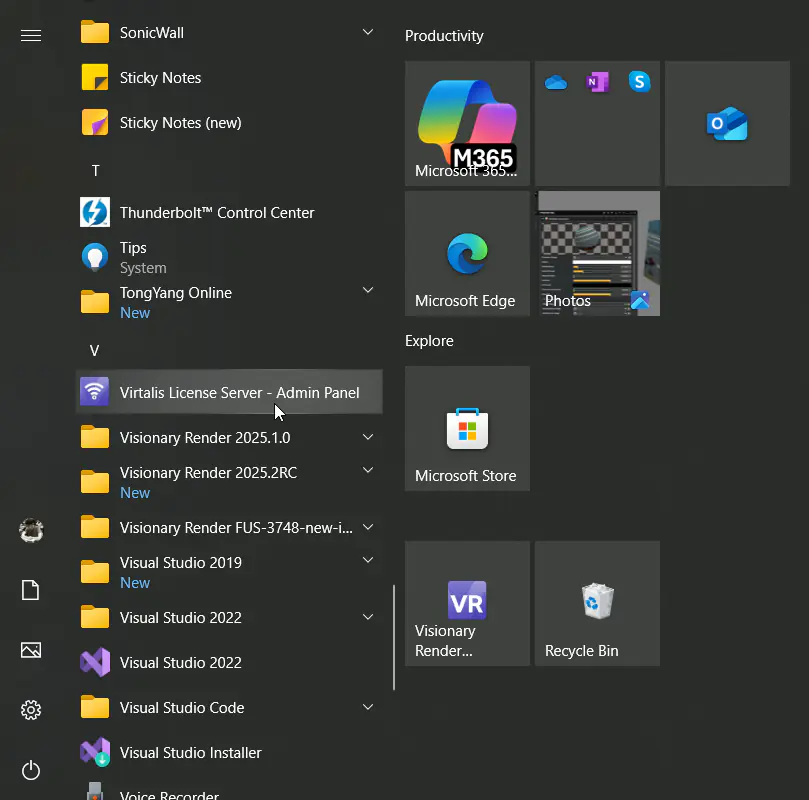
Open the Start Menu and follow the link Virtalis License Server - Admin Panel to open the admin panel in your default browser.
You should now see the login page as below. Enter these credentials into it and press the Sign In button:
Credential Value Username admin Password virtalis 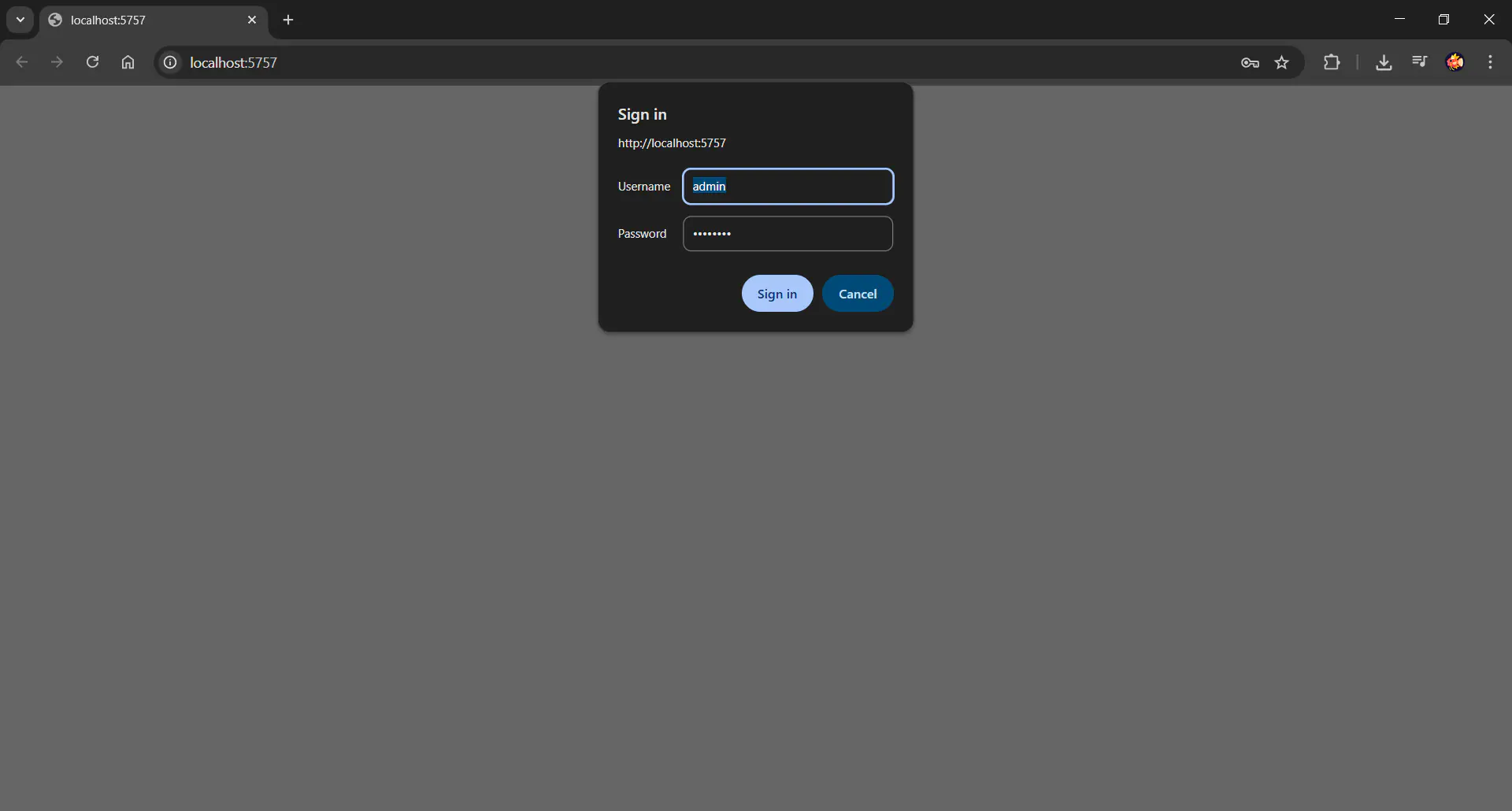
Once you have logged in, you should see the below page. From here, you can view a list of available licenses, import new ones, connect to a license server, or configure the license settings for this application.
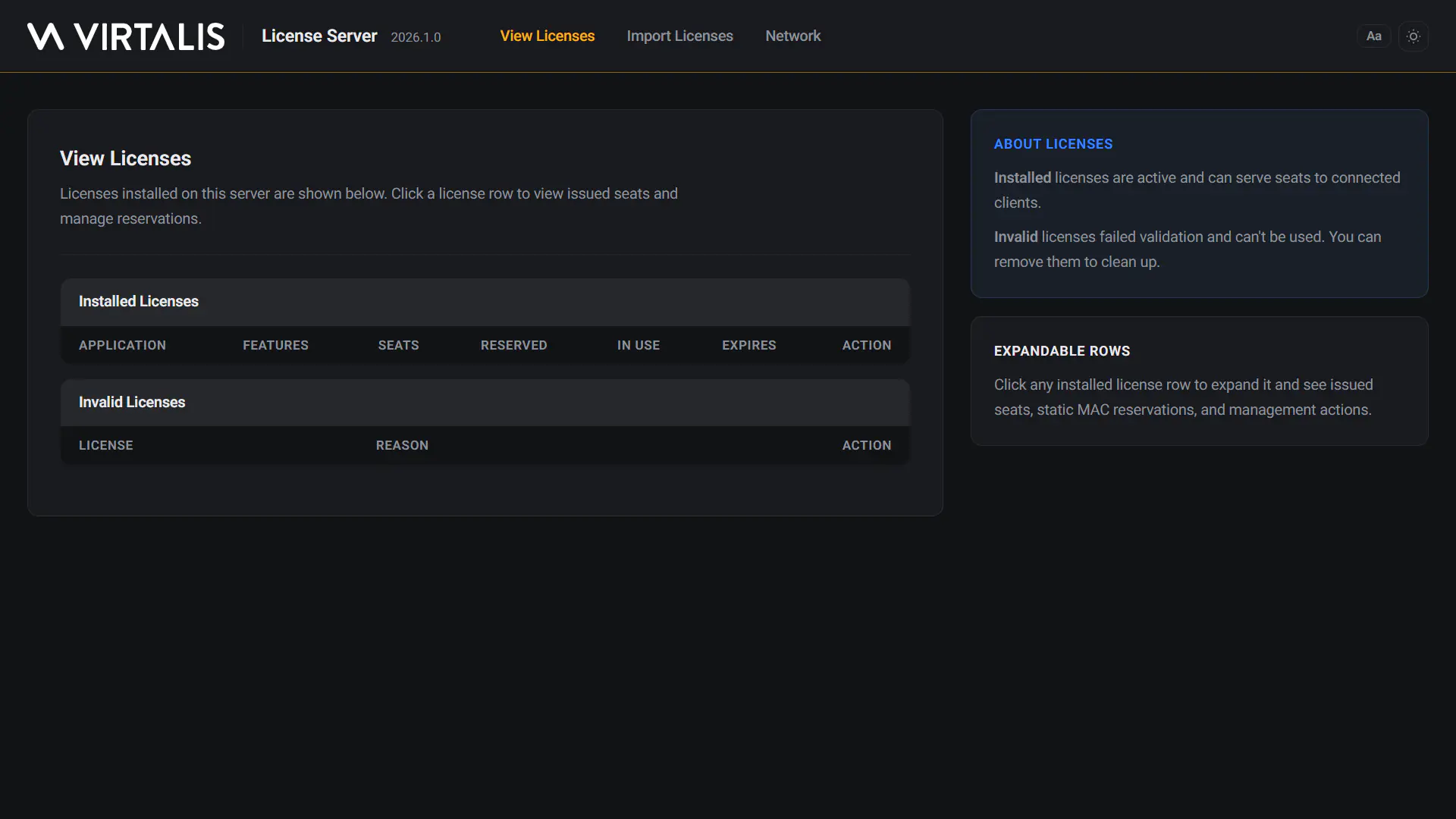
The URL consists of the IP address of the PC running the server, plus the port number (which defaults to 5757). For example, http://192.168.0.32:5757/, or http://127.0.0.1:5757/ if you are accessing the admin panel from the server machine itself.
- If port 5757 was unavailable, the server will incrementally try new ports until one is available, or until it runs out of ports. If this happens, the server will not be able to start.
- If you get a
403 forbiddenerror then close the browser and retry. This is normally caused by an error during the login process, so make sure the username and password are correct.
Import License
You will then need to click on the Import Licenses page and send the details in the Detected Adapter window to licensing@virtalis.com. Select the text and copy it into an email or text file. We can then generate the network licenses from those details. Network licenses are different to node locked licenses.
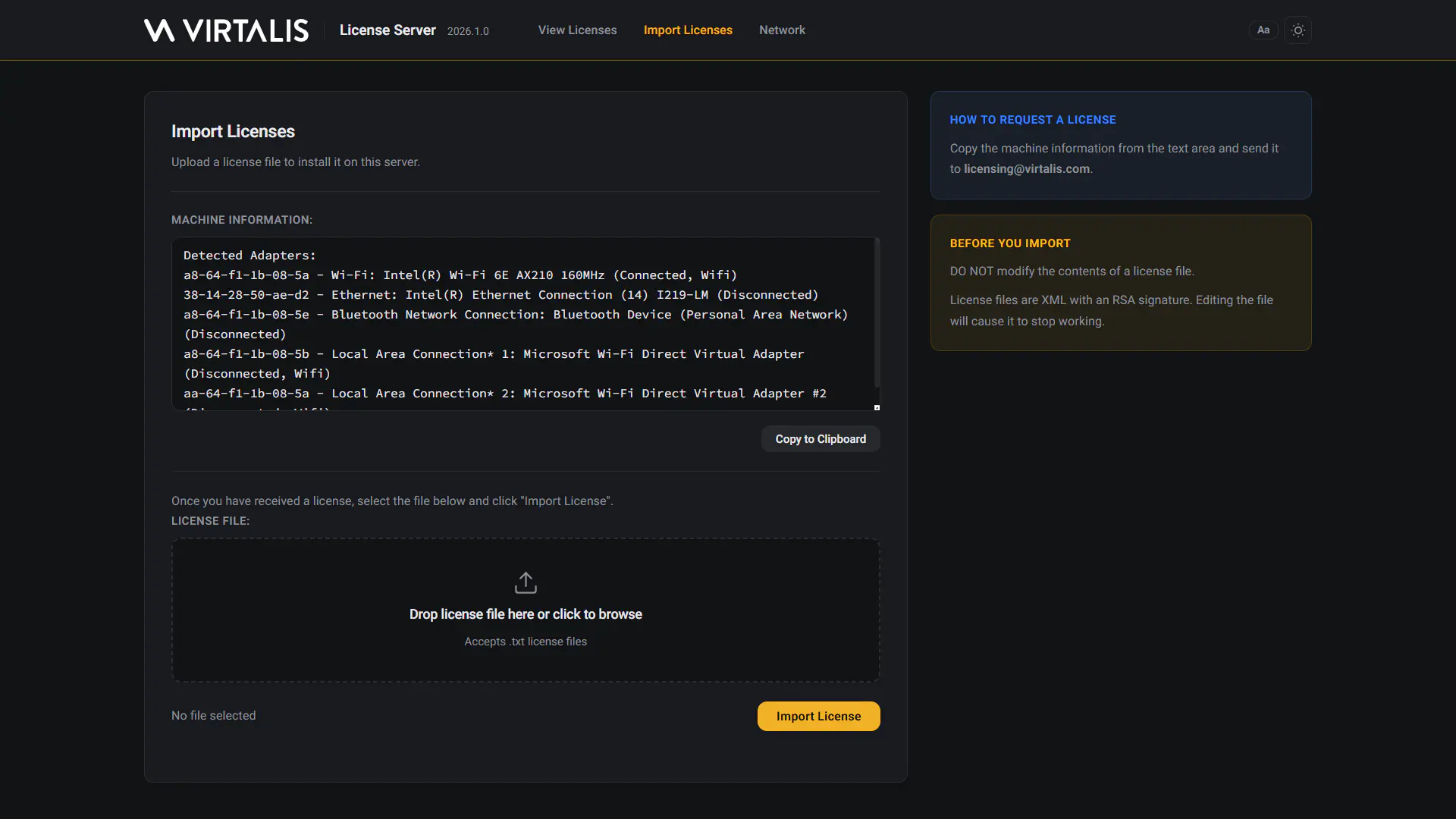
To import a Network license, click on the Choose File button, select the file and click on the Submit button. Check in the View Licenses page that the license has been imported correctly.
To see the details of a checked-out license click on the application name. You will then see the user, PC name and MAC address of the system with the license. Click the X at the end of the issued license details to release the license.
Check that the IP address in the web browser address bar matches the range used on your network. Otherwise, the license server might have chosen to use the wrong network card.
Log File
If you need to investigate an issue with the license server, you can find a log file on the server machine at one of the following locations:
C:\Windows\SysWOW64\config\systemprofile\AppData\Local\Virtalis\LicenseServer\LogsC:\Windows\ServiceProfiles\NetworkService\AppData\LocalC:\Windows\ServiceProfiles\LocalService\AppData\Local
Task Manager
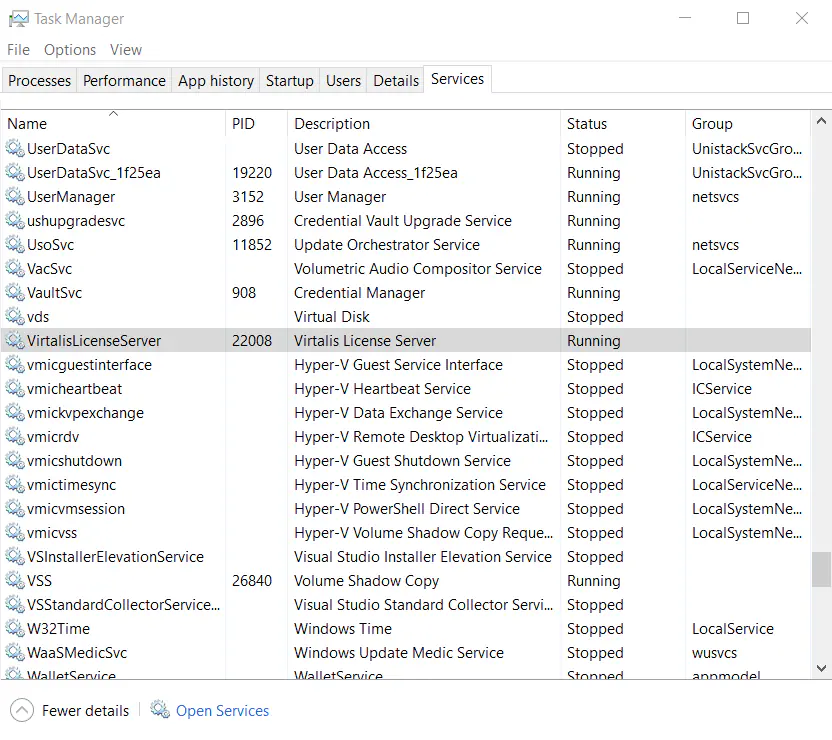
You can view the license service in Task Manager via the Services tab. From here you can stop and start it.