Assemblies
Assembly nodes are the building blocks of Visionary Render scenes. They enable you to position, orient and scale objects in your scene. Each assembly defines a transform in the transform hierarchy, in which transforms have parent-child-sibling relationships. The units are metres and degrees. If your data has been translated from a CAD format, then the scale will generally be unit scale.
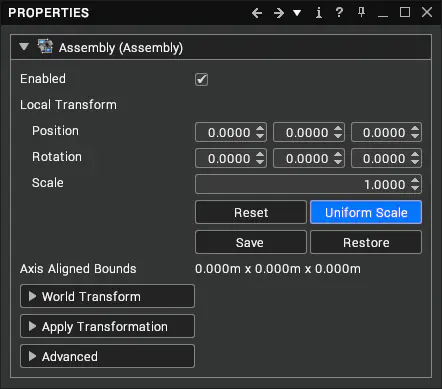
Buttons
| Button | Description |
|---|---|
| Reset | Reset the transform to its default values (i.e. an identity matrix that won’t transform child nodes in any way). The image above shows a local transform set to identity. |
| Uniform Scale | By default, assemblies scale equally along the x, y, and z axes. Click on this button to switch to non-uniform scaling. |
| Save | Save the current transform of this assembly. |
| Restore | Restore the saved transform of this assembly. |
World Transform

This can be changed to transform the Assembly relative to the world origin instead of to its ancestors.
Apply Transformation

The Apply Transform drop-down can be used to set a transform without applying it to an Assembly until the Apply button is pressed. It can be applied as a Local or World transform, depending on the Transform Mode property.
Constraints
The Advanced rollout contains a property for adding constraints to an Assembly.

Lock
Prevent the Assembly from being transformed.
Parent
Prevent the Assembly from being transformed locally.
Limits
Limit individual components of the Assembly's transform. A TransformLimits node will be automatically created to permit the limits to be configured from the Properties window.

Transform limits are only applied to user input.
Look At
The Look at option permits you to select a Target Assembly to direct this Assembly towards. The axis is determined by the model's axis and may need to be adjusted to ensure correct direction. If required, a secondary node can be selected for the up axis.
